 Pastethread
One ⌘V. The right paste for every app.
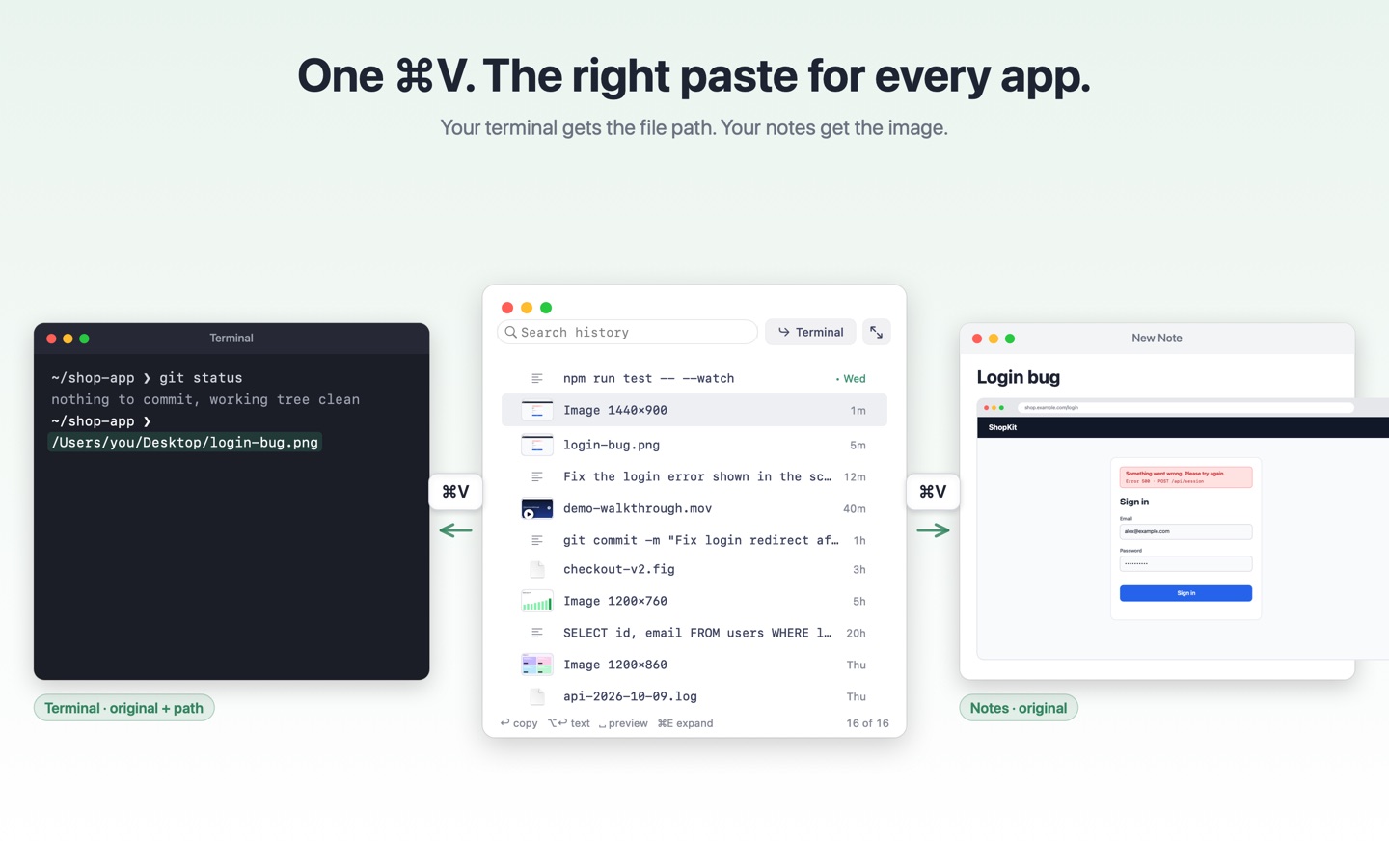
Copy a screenshot once. Paste its path in Terminal and the original image in Notes. Set a rule for each app, then keep using ⌘V as usual.

For macOS 14 or later · Paid app · See the App Store for your local price · No account required
Try it in a minute
- Install Pastethread from the Mac App Store and enable the Terminal preset in the setup guide.
- Copy a screenshot with Control-Shift-Command-4. Press ⌘V in Terminal for its path, or in Notes for the image.
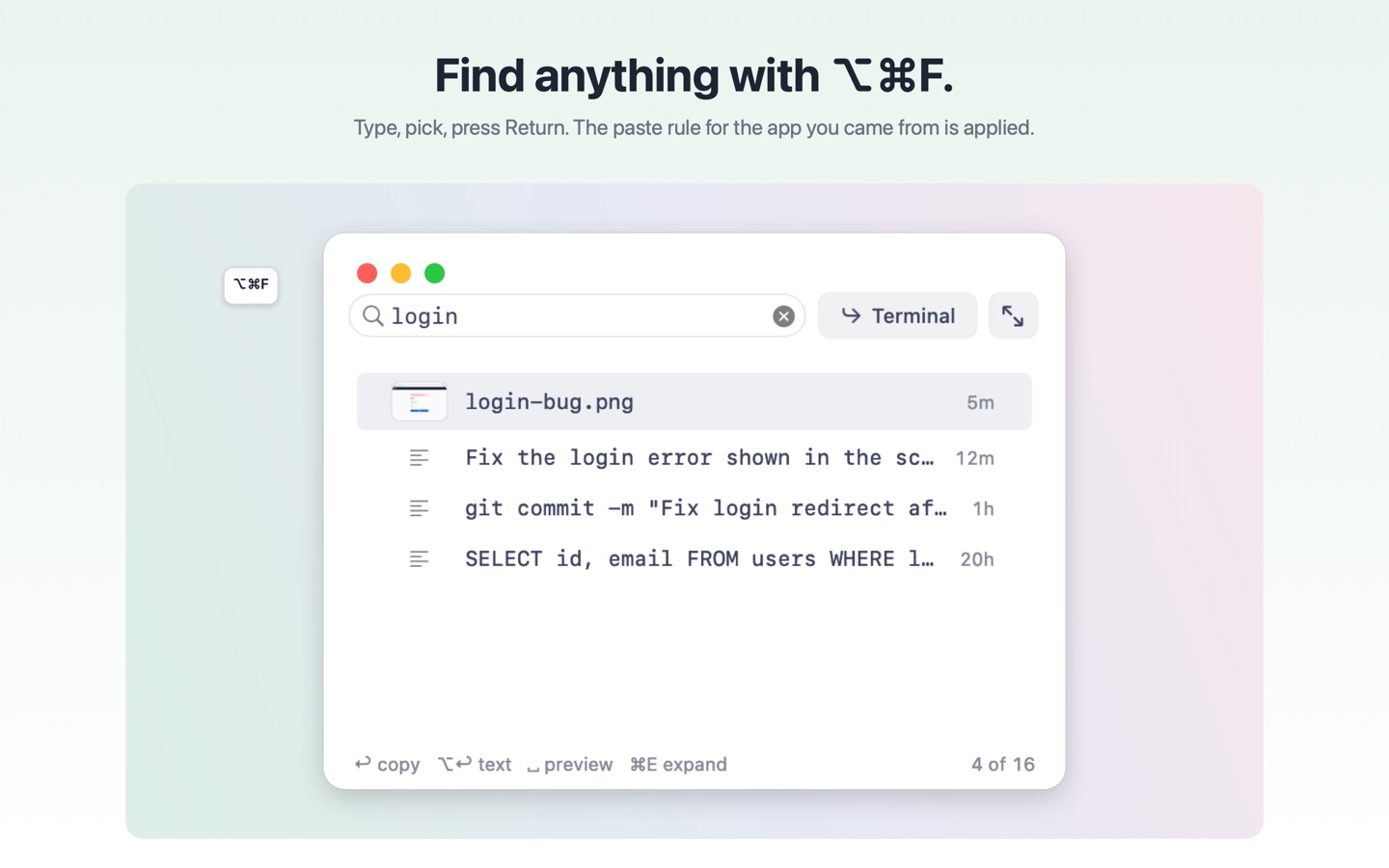
- Change a rule from the menu bar. Press ⌥⌘F to find text, images, and files you copied earlier.
Terminal may ask permission to access data from other apps when a command opens a generated image file. See the support FAQ.
Why
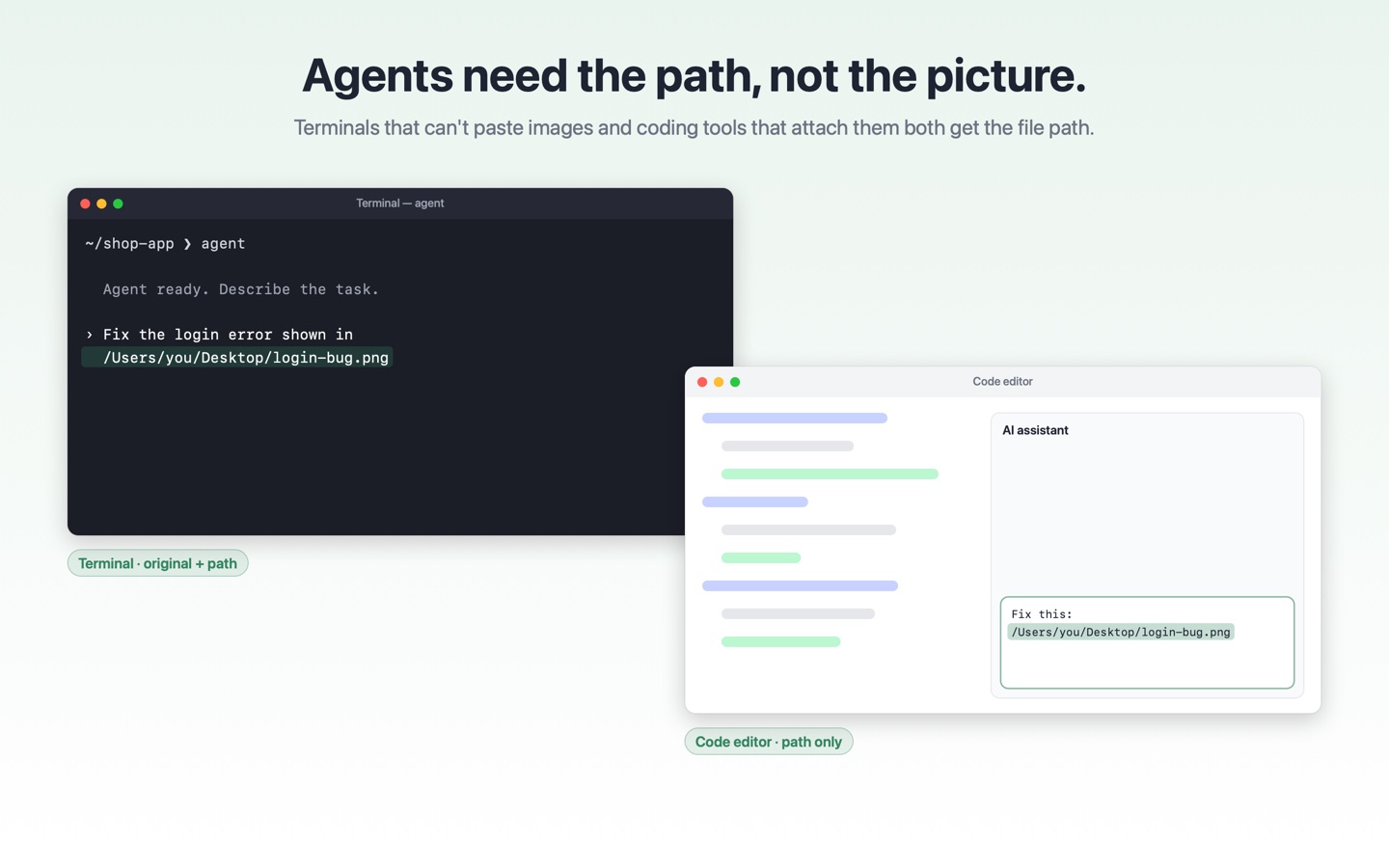
Some terminals can't paste an image at all, and AI agents only need its path. Coding tools often attach the image when a path is all you want. Pastethread gives each app the right thing — without changing how you work.
Paste Rules
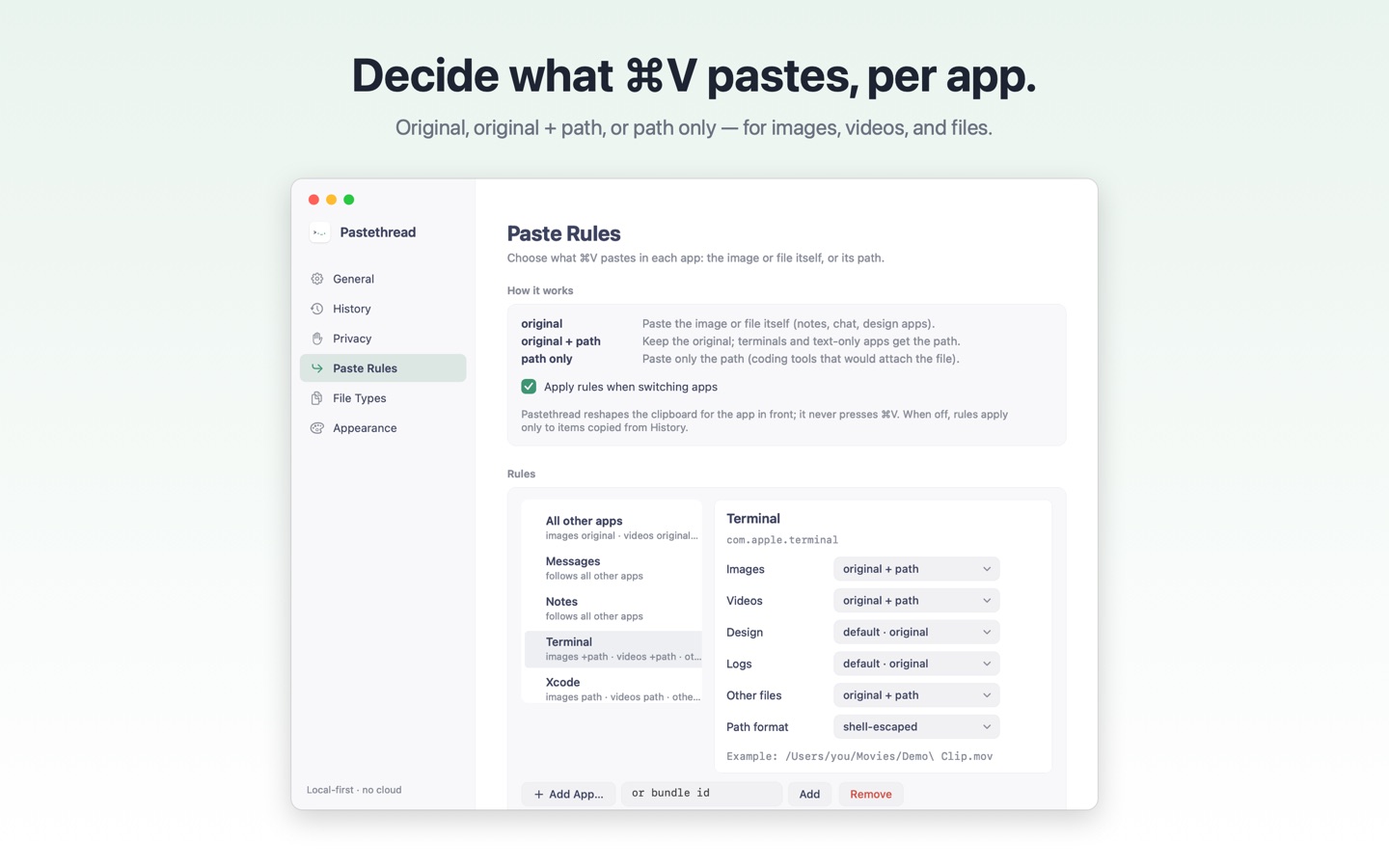
original — paste the image or file itself (notes, chat, design apps).
original + path — keep the original and paste the file path as text (terminals).
path only — paste just the path (coding tools that would attach the file).
Choose per app and per file type (images, videos, other files, or your own extensions) from the menu bar, the History window, or Settings. Paths can be plain, shell-escaped, or quoted, and terminals start with a ready-made preset.
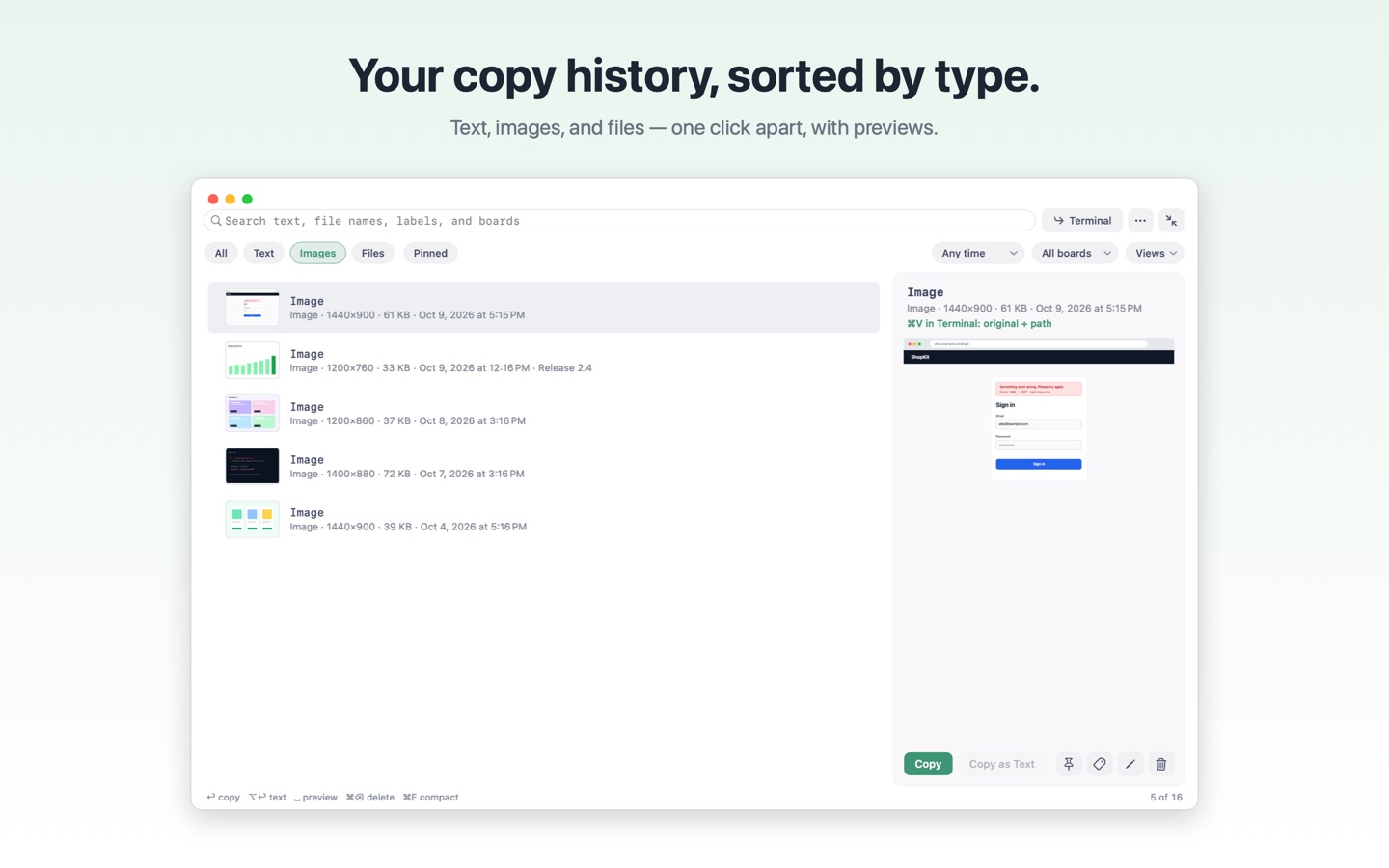
Copy history, sorted by type
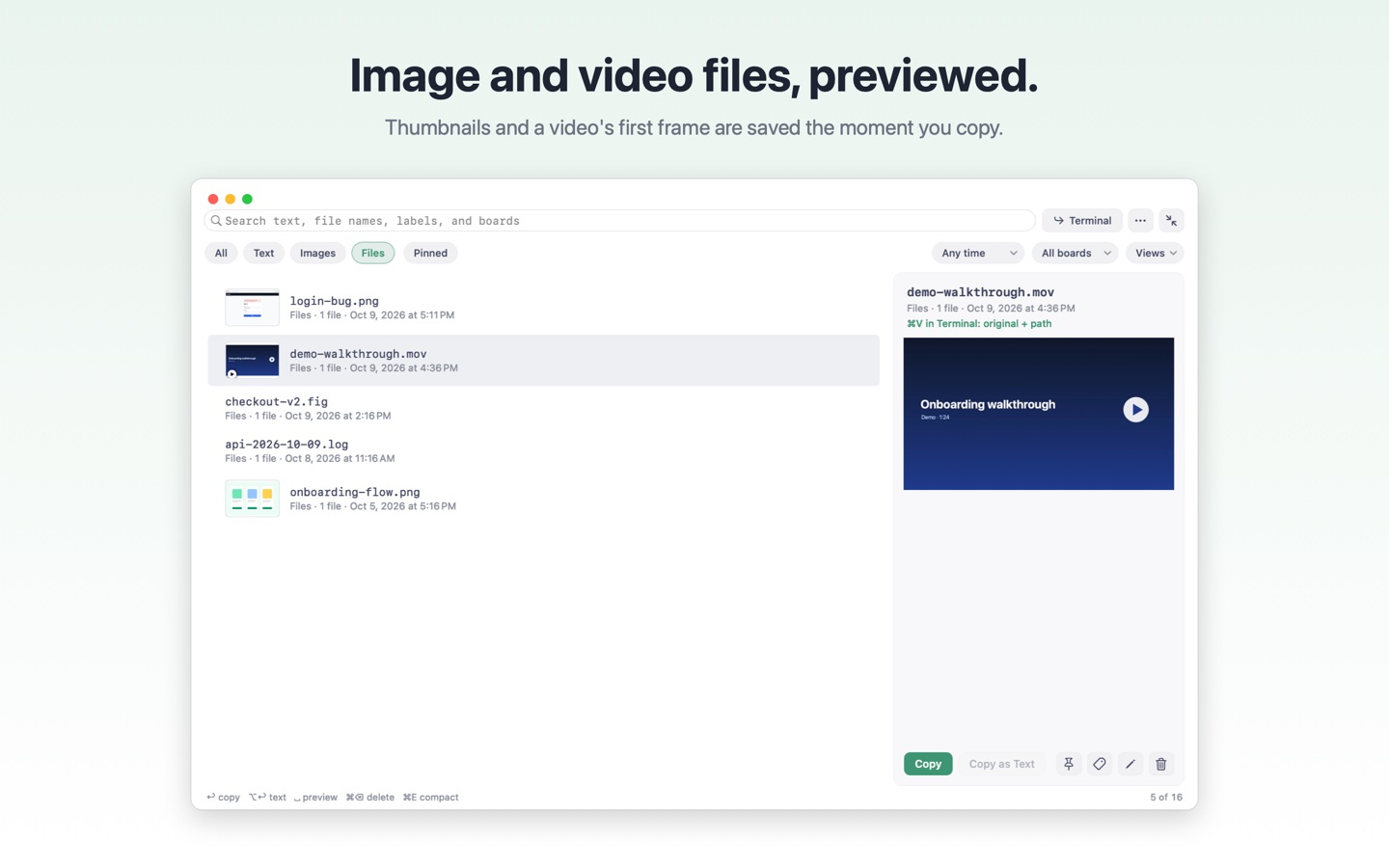
Find text, images, and files with one click, preview image files and a video's first frame, and open it anywhere with ⌥⌘F. Type, pick, press Return — the paste rule for the app you came from is applied. Enable optional on-device text recognition to search text inside screenshots (off by default). Pins, boards, and saved views keep what matters close.
Private by design
Everything stays on your Mac. No account, cloud, analytics, or tracking. Pastethread never presses ⌘V for you and needs no Accessibility permission. Privacy Policy.
Less clipboard busywork.
Paths where you need them. Originals where you want them. A local history to find both again.
Get Pastethread on the Mac App Store →